After Days of Fiddling, I Finally Get MCP — Here It Is in Plain English
MCP is the USB-C of the AI world. What the Model Context Protocol actually does, three real uses, and the exact config to run your first server.
On this page
For the past couple of weeks, every time I opened Twitter, browsed forums, or lurked in tech groups, someone was talking about MCP. At first I was genuinely lost — what the heck do those three letters even mean? I forced myself through the official docs, and ten minutes in my head was spinning. “Clients,” “servers,” “protocols” — the more I read, the more it felt like gibberish.
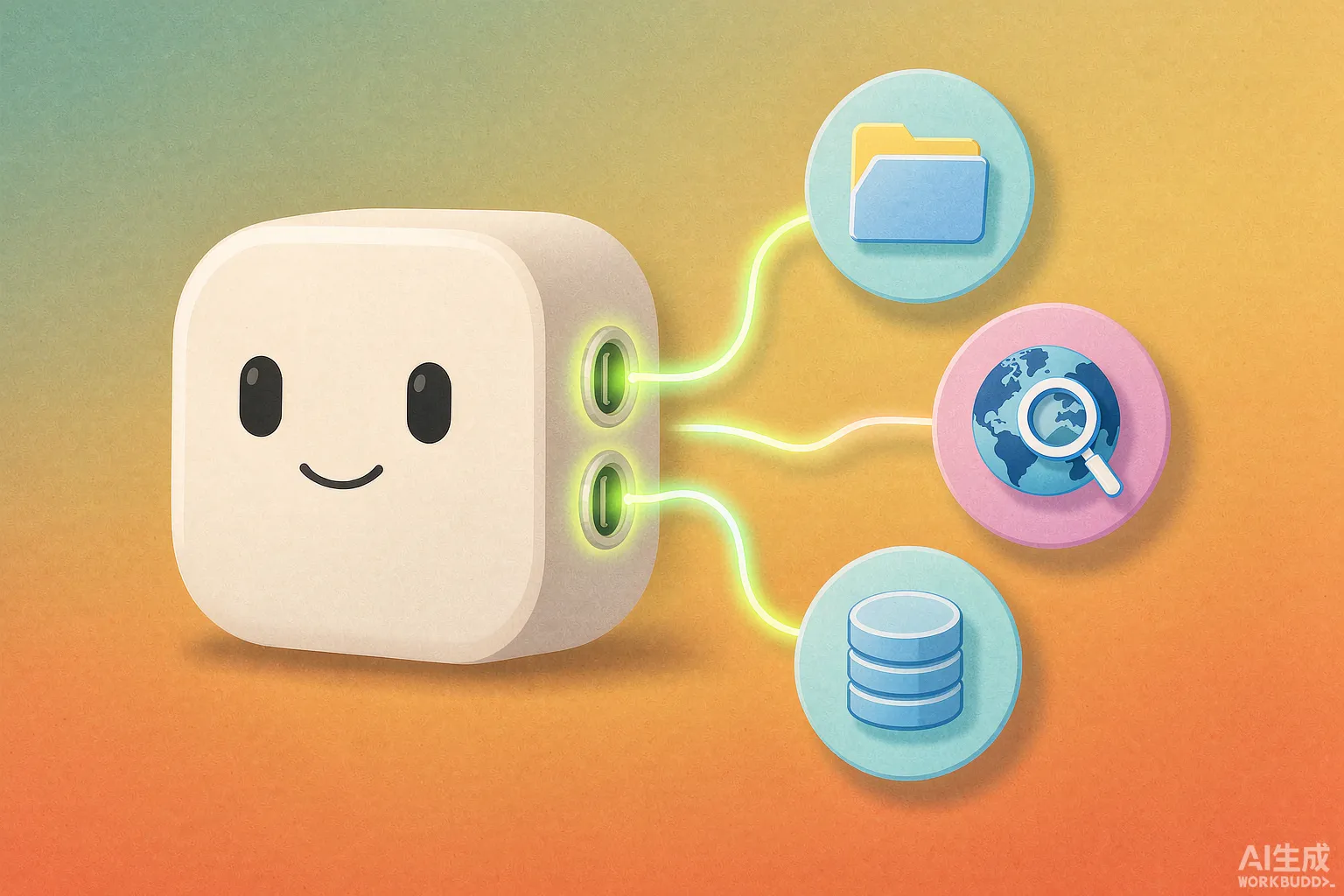
Then a developer friend of mine said one sentence and it all clicked. He said: MCP is basically the USB-C of the AI world.
That one line, and it all made sense.
Remember phone charging cables? One for Android, one for iPhone, yet another for your camera — your drawer stuffed with different cables, and finding a working one could take ten minutes. Then USB-C came along: one cable that does everything. Charging, data transfer, connecting to a monitor, all of it.
That’s exactly what MCP does — except instead of connecting devices, it connects AI with tools and data sources. Before, every AI tool that wanted to reach outside stuff had to build its own custom integration, just like every manufacturer shipping their own proprietary cable. Now there’s MCP as a universal standard: whether the AI wants to read your files, query your database, or search the web, everything goes through the same port. Plug and play.
MCP stands for Model Context Protocol. The name sounds intimidating, but just remember one thing: it’s the universal outlet that lets AI “reach out and touch” the outside world.
What can MCP actually do? Three things I’ve genuinely used
First, letting Claude read files directly on my computer. Before, if I wanted AI to help organize documents, I had to copy and paste things over, back and forth. Now, with the filesystem MCP server hooked up, I just say “go through the markdown files in that folder on my desktop and turn them into a list” — and it goes and does it, like hiring an assistant.
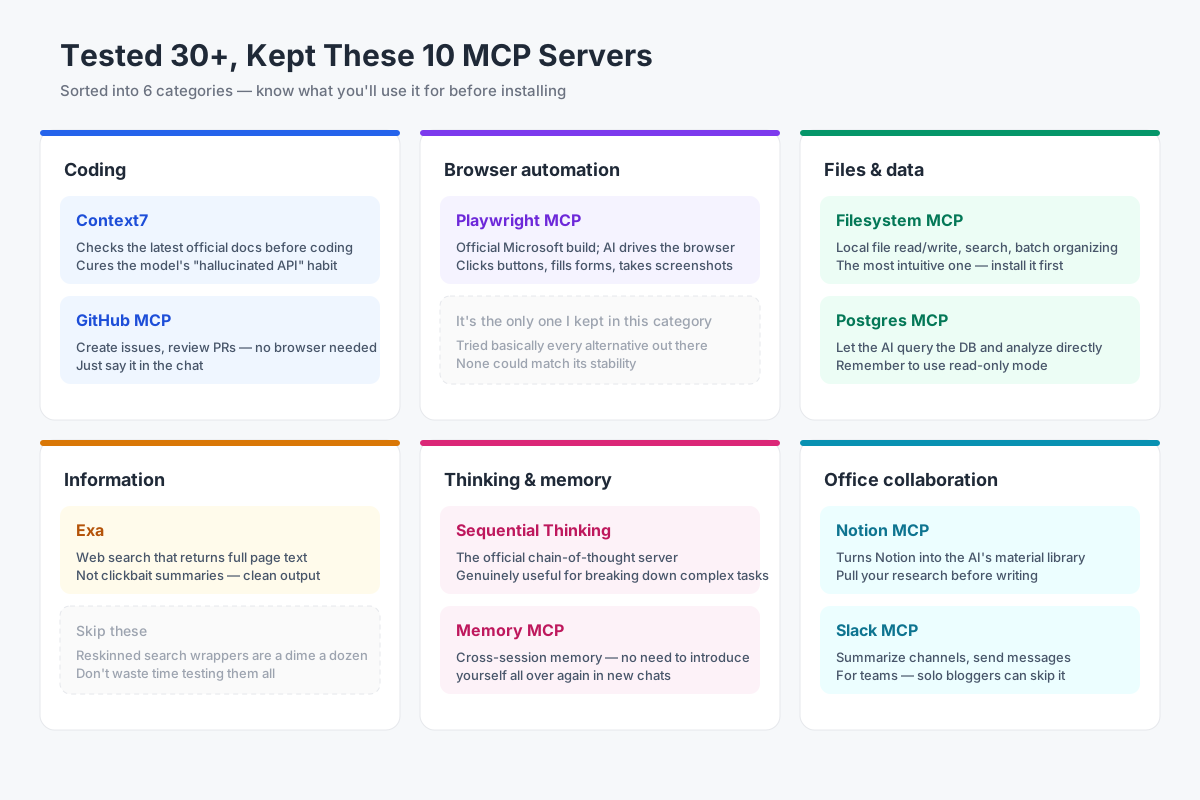
Second, letting AI search the web and compile research on its own. For my blog, I used to open seven or eight tabs, read a bit, copy a bit. Now the AI searches by itself, reads by itself, and comes back with an organized summary. All I do is the final quality check. I’ve been using this for two months, and honestly, it’s hard to go back.
Third, connecting Cursor to a database. Fellow devs will get this: looking up a count or checking a table structure used to mean opening a database client and typing commands. Now I just ask the AI right in the editor, “How many users have been registered for over a year?” — it connects to the database, runs the query, and tells me. My coding efficiency jumped a whole level.
If you want to get started, follow these steps
Don’t be scared off by the tutorials online. Installing an MCP is really not that hard — let me break it down for you.
Step one, make sure your tool supports MCP. Claude Desktop, Cursor, some VS Code extensions — they all support it. If your version is too old, upgrade first.
Step two, find the config file. For Claude Desktop, it’s a file called claude_desktop_config.json; in Cursor, there’s an MCP entry right in the settings. Don’t panic — at its core, you’re just filling in a few lines of config.
Step three, install your first MCP server. I recommend starting with “filesystem” because it’s the easiest to see results with. All you do is add a section to the config telling the AI which folder it’s allowed to access.
The config looks like this — copy it as-is and just change that folder path at the end:
{
  "mcpServers": {
    "filesystem": {
      "command": "npx",
      "args": [
        "-y",
        "@modelcontextprotocol/server-filesystem",
        "C:\\Users\\your-username\\Desktop\\mcp-test"
      ]
    }
  }
}
That’s it, a few lines. command means “how to launch it,” and the last item in args is the folder the AI is allowed to access — swap it for whichever directory you want to open up. On a Mac, the path looks like this: /Users/your-username/Desktop/mcp-test.
Once you’re comfortable and want to add another server — say, letting it fetch web pages — just add another section side by side under mcpServers:
{
  "mcpServers": {
    "filesystem": {
      "command": "npx",
      "args": [
        "-y",
        "@modelcontextprotocol/server-filesystem",
        "C:\\Users\\your-username\\Desktop\\mcp-test"
      ]
    },
    "fetch": {
      "command": "npx",
      "args": ["-y", "@modelcontextprotocol/server-fetch"]
    }
  }
}
Yep, it’s that straightforward — one name, one launch config. Just don’t fumble a comma or a brace in the JSON. That’s where newbies crash and burn the most.
Step four, restart the app and see if it connected. If it did, you’ll see it in the tool list, and then just fire off a command and try it.
My first time took about half an hour, and where I got stuck was… a misplaced comma in the config file. Yeah, exactly that dumb of a reason. So if you hit an error, check your JSON format first — nine times out of ten it’s a punctuation problem.
A few beginner-friendly MCP servers — feel free to copy this list
- Filesystem: read and write local files, must-have for beginners
- Fetch / Web Search: lets AI search the web and grab pages
- Memory: gives AI a memory, so it remembers your preferences across conversations
- GitHub: manage repos, check issues, open PRs — the AI can handle it
- PostgreSQL / SQLite: connect databases, a blessing for devs
- Slack: read and send messages, great for team collaboration
Start with just one or two. Don’t get greedy.
Pitfall warnings — bookmark this part
Security first, and I mean it seriously. MCP gives AI a lot of power — it can read your files, go online, connect to databases. So never install an MCP server from some random unknown source, and don’t hand over your entire C drive on day one. Give it a single folder, give it read-only permissions, follow the principle of least privilege. It can save you.
Compatibility is worth a mention too. The MCP standard is still pretty new, and different tools support it to varying degrees. Sometimes the exact same config works on this machine but throws errors on another. When things break, don’t question your life choices — check whether the official docs have been updated first. I’ve hit that twice, and both times it was just an outdated version.
Also — don’t use MCP for everything. I’ve seen someone install a calculator server just so “the AI could do some addition”… Come on, it could already do that. If you just occasionally need the AI to do something, copy-pasting takes three seconds — don’t tinker for the sake of tinkering. Tools are there to serve you, not to add drama to your day.
Some honest words to wrap up
Honestly, I went into MCP thinking “great, another marketing buzzword,” and reading the docs made me even more confused. But once I actually started using it, my feeling was: this thing might just be the next dividing line for AI applications.
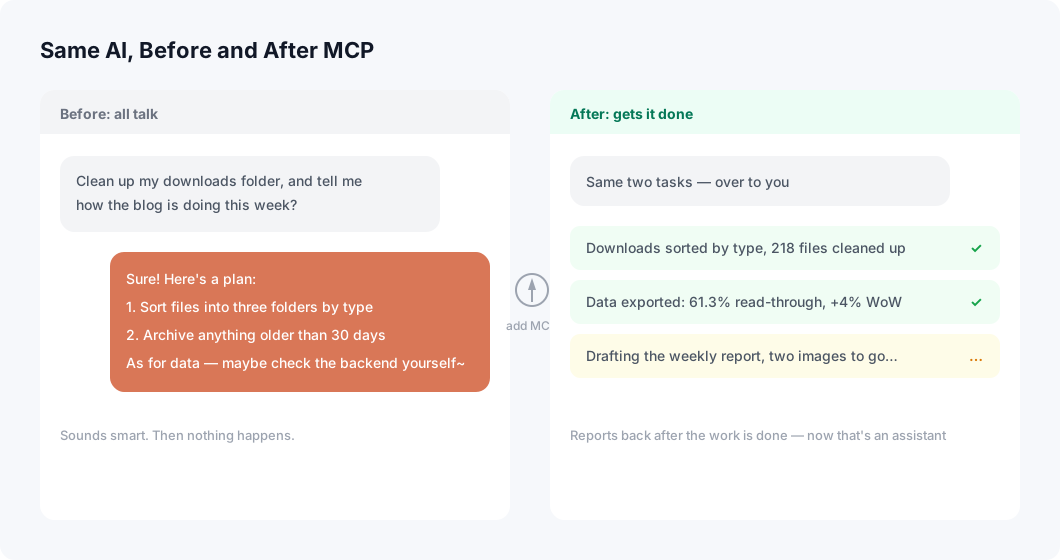
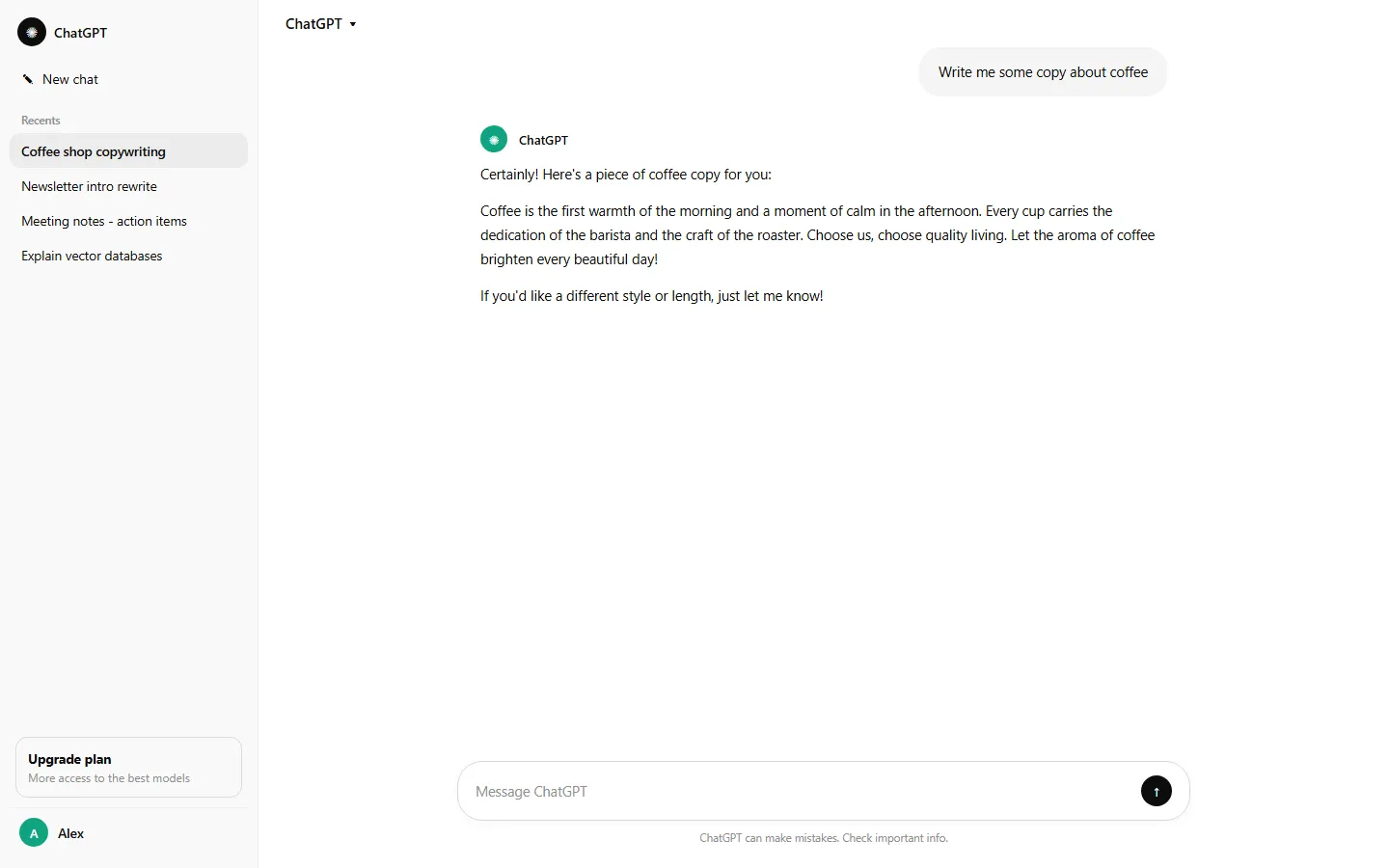
The old AI was an advisor who “only talked, never acted” — you asked, it answered, but you still had to do the doing. Hooked up to MCP, AI becomes an assistant with actual hands and feet — it can go look, go search, go do things on its own.

That shift sounds small, but in practice it’s a whole different world.
Don’t wait — pick a weekend, spend half an hour installing one, and you’ll understand what I’m so excited about after using it once. Learn it early, benefit early — in tech, that’s never an empty phrase. By the time everyone’s already using it and you’re only starting to learn about it, you’ll genuinely be a step behind.
Frequently asked questions
What does MCP stand for?
Model Context Protocol — an open standard that lets AI models connect to external tools and data sources through one universal interface.
Do I need to know how to code to use MCP?
No. Installing an MCP server is usually just editing a JSON config file. If you can copy and paste a settings block, you can do it.
Is it safe to let AI read my local files?
Only grant access to specific folders you choose. The filesystem MCP server can only see what you explicitly allow in the config.