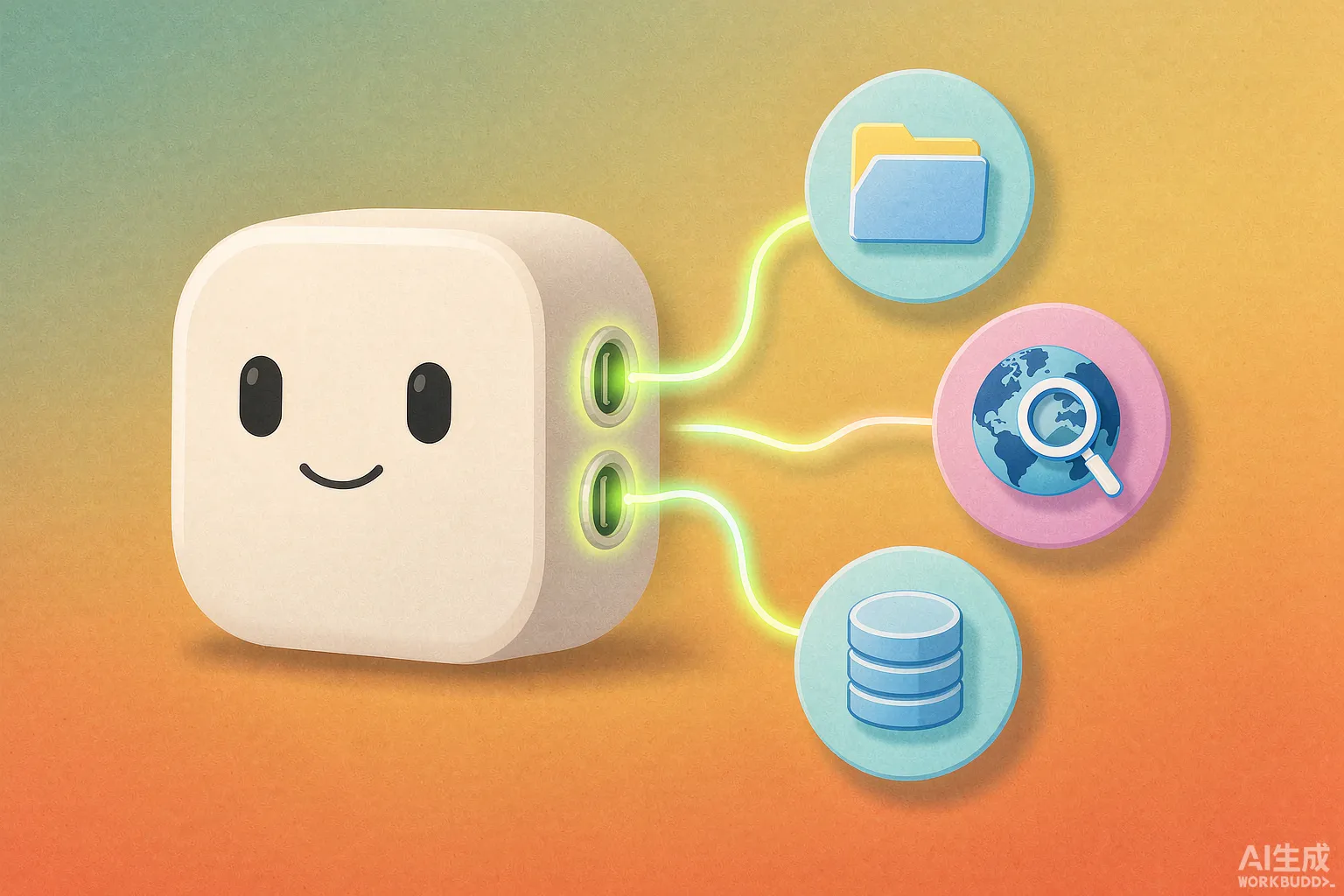
15 Must-Have MCP Servers in 2026
Fifteen MCP servers that survived months of daily use, grouped by what they actually do, with install difficulty, pricing and pitfalls for each.
On this page
If you don’t know what MCP is yet, go read my earlier intro post first — this one doesn’t cover basics.
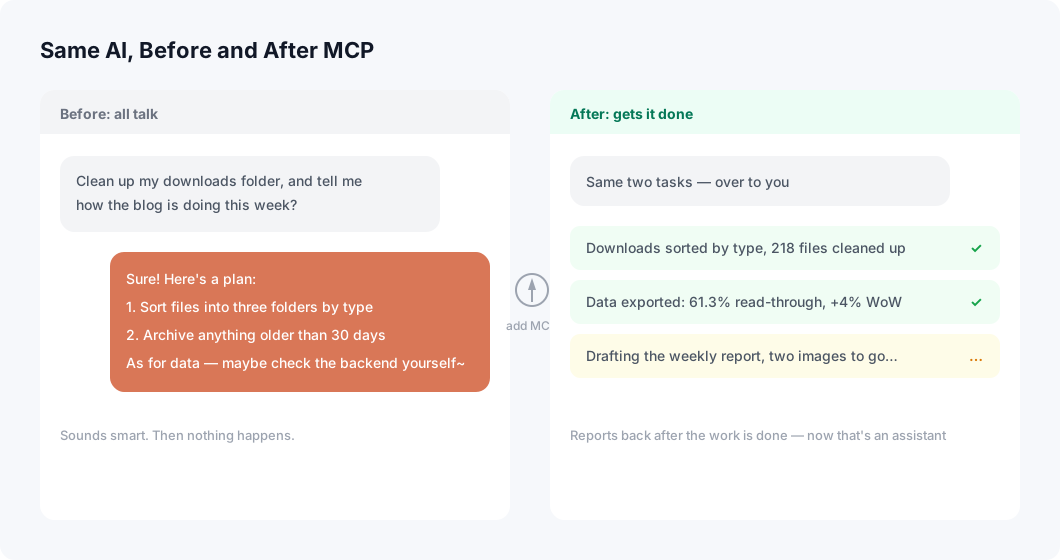
This post does exactly one thing: lay out the 15 servers that survived my testing spree of dozens. The biggest change they brought me? The AI went from a “chatbot” to an “assistant that actually gets things done” — it no longer just lists ideas for me, it rolls up its sleeves and does the work.

Same AI, before and after MCP
As usual, big picture first, then we break each one down.

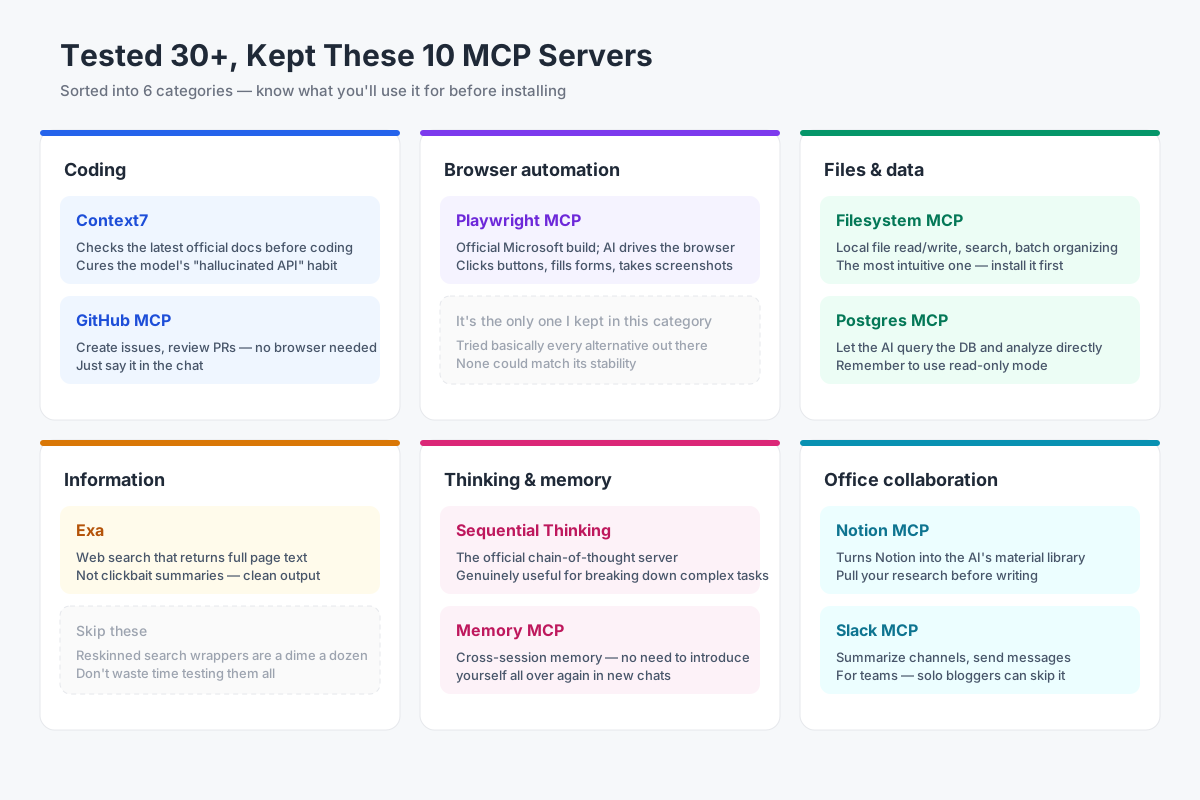
Category overview of the 15 MCP servers
Each server gets the same treatment: one-line positioning, what it can do, install difficulty, a real use case of mine, free or paid (with prices), and pitfalls to watch for. Let’s go.
File Management
Filesystem
One line: the official local file butler — the AI can finally touch the files on your computer.
What it can do: ① read, write, search, and batch-rename within a specified directory; ② organize and archive folders by rules; ③ full-text search across project code
Install difficulty: Easy — one npx command
What I use it for: weekly downloads-folder cleanup, batch-renaming blog images, finding “which files reference this function” in a project
Free or paid: completely free and open source
Pitfalls: scope the directory strictly — never hand it your whole drive; more on security later
Google Drive MCP
One line: turns your cloud drive into the AI’s filing cabinet, everything on call.
What it can do: ① search documents and files in Drive; ② read document contents to feed the AI; ③ list and organize file inventories
Install difficulty: Medium — you’ll need to create a Google Cloud project and set up OAuth, which is a bit fiddly the first time
What I use it for: pulling topic research I’ve stashed in Drive and having the AI summarize it, instead of digging through folders myself
Free or paid: free (Google API has daily quotas)
Pitfalls: API rate limits — bulk reads can hit throttling; make sure private files are authorized in advance
Search & Research

Search and research workflow
Exa
One line: a search engine built for AI — returns actual content, not clickbait.
What it can do: ① semantic search (“find articles discussing the tradeoffs of X” just works); ② returns clean page text; ③ find-similar expansion from any page
Install difficulty: Easy — just an API key
What I use it for: tech stack comparisons, hunting down threads about specific error messages. Clean enough to use as-is
Free or paid: $10 in free credits on signup, pay-as-you-go after that
Pitfalls: you’ll pay once the credits run out — budget accordingly if you’re a heavy user
Tavily (official site: link pending)
One line: real-time search designed for AI, a popular pick for RAG workflows.
What it can do: ① live web search returning distilled results; ② targeted crawling of specific domains; ③ a deeper mode for more thorough digging
Install difficulty: Easy
What I use it for: having the AI grab the week’s industry news before writing my newsletter — no more ten open tabs
Free or paid: 1,000 free requests per month, paid plans from $30/month
Pitfalls: the free tier is fine for personal use, but it bills per request — don’t let it loop-search forever
Firecrawl (official site: link pending)
One line: crawls entire websites into clean Markdown — exactly what the AI wants to eat.
What it can do: ① single-page scrape to Markdown; ② recursive full-site crawling; ③ handles pagination and dynamically loaded content
Install difficulty: Easy (cloud) / needs some technical chops (self-hosted)
What I use it for: scraping competitor blogs for content analysis — a half-day job done in ten minutes
Free or paid: 500 free credits, paid from $16/month
Pitfalls: credits burn per page; crawling a big site empties them fast. Some sites have anti-bot measures — don’t force it
Development & Coding
GitHub MCP
One line: manage repos without opening a browser — issues, PRs, and CI all in the conversation.
What it can do: ① create issues, add labels, assign tasks; ② review and merge PRs; ③ read CI failure logs and analyze causes
Install difficulty: Medium — you’ll need to generate and configure a token
What I use it for: saying “turn this bug into an issue and assign it” mid-coding; weekly recaps from a week’s worth of commits
Free or paid: completely free and open source
Pitfalls: least-privilege token — repo scope is enough, skip the admin access
Playwright MCP
One line: Microsoft’s official server — the AI drives a browser with its own hands.
What it can do: ① operate web pages step by step on command; ② fill forms, click buttons, take screenshots; ③ pull data from login-required admin pages
Install difficulty: Easy — zero config
What I use it for: my blog’s weekly data export went from manual chore to “just ask”
Free or paid: completely free and open source
Pitfalls: slow, one click at a time; gives up the moment it sees a CAPTCHA
Context7
One line: feeds the model the latest official docs before it writes code — cures API hallucinations.
What it can do: ① fetch up-to-date docs by library name; ② inject version-specific usage into context; ③ covers major open-source libraries
Install difficulty: Easy — doesn’t even need an API key
What I use it for: noticeably higher first-run success rate on new-version code like Next.js 15
Free or paid: free
Pitfalls: public libraries only; obscure ones occasionally time out
Productivity
Notion MCP
One line: turns Notion into the AI’s external brain and material library.
What it can do: ① search and read Notion pages; ② create and update pages and database entries; ③ organize scattered notes into structured content
Install difficulty: Easy — OAuth and you’re in
What I use it for: pulling my research stash into an outline before writing
Free or paid: the MCP itself is free; Notion’s free tier works
Pitfalls: search can be slow on large workspaces; double-check sync results after writes
Slack MCP
One line: the AI moves into your work channels — reading, sending, summarizing.
What it can do: ① read channel history; ② summarize long threads; ③ send messages on the AI’s instructions
Install difficulty: Medium — you’ll need to create a Slack App and configure permissions
What I use it for: a morning summary of what the dev channel argued about overnight — three minutes to decide whether to jump in
Free or paid: free
Pitfalls: near-useless for solo users; only shines in team settings
Google Calendar MCP
One line: schedule management by voice — the AI books and reschedules for you.
What it can do: ① find free time slots; ② create, modify, and cancel events; ③ check conflicts across multiple calendars
Install difficulty: Medium — another Google OAuth dance
What I use it for: “book a one-hour call next Tuesday afternoon, avoid my existing plans” — done, hands off
Free or paid: free
Pitfalls: time zones occasionally misbehave — double-check cross-timezone bookings yourself
Creative & Design
Figma MCP (official site: link pending)
One line: design file data flows straight to the AI — no more screenshot ping-pong for handoffs.
What it can do: ① read design file structure and style data; ② generate frontend code directly from a design; ③ query components and specs
Install difficulty: Medium — enable it in the Figma desktop app
What I use it for: handing a design to the AI for page reproduction — noticeably more faithful than eyeballing screenshots
Free or paid: the MCP ships with Figma, but full functionality needs a paid Dev Mode seat (~$15/month)
Pitfalls: free seats are feature-limited; it also expects reasonably organized design files — a mess in, a mess out
Blender MCP
One line: the community’s star project — the AI builds 3D models inside Blender with its own hands.
What it can do: ① model from natural language; ② arrange scenes, adjust materials and lighting; ③ iterate (“make this rounder”)
Install difficulty: Needs some technical chops — a Blender plugin plus a local service
What I use it for: generating 3D assets for blog illustrations. Even as pure play, it’s a blast
Free or paid: completely free and open source
Pitfalls: complex models will fail — don’t expect one-shot results; running Blender locally taxes your GPU

Blender MCP modeling process
Data
Postgres MCP
One line: the AI connects straight to your database and writes its own SQL — data analysis without knowing SQL.
What it can do: ① natural language to SQL queries; ② database performance diagnostics; ③ schema analysis reports
Install difficulty: Medium — configure a connection string
What I use it for: analyzing blog traffic — “which channel has the highest read-through rate” straight to an answer
Free or paid: completely free and open source
Pitfalls: always use a read-only account; the connection string contains your password — never share that config file around
Supabase MCP
One line: Supabase’s official server — create tables, query, and manage data by voice.
What it can do: ① create and modify tables; ② run queries; ③ manage database migrations
Install difficulty: Easy — just an access key
What I use it for: small projects from schema to queries entirely by voice; pairs great with Supabase’s free tier for indie developers
Free or paid: MCP free; Supabase has a free tier, Pro is $25/month
Pitfalls: the access key is powerful — a leak means a naked database. Environment variables only, please
My Hard-Earned MCP Lessons
Time for some real talk.
My early mistake was believing “more servers = more power.” At my peak, my config file had 20+ servers attached. The result? A tool list so long the model frequently picked the wrong tool, task failure rates visibly climbed, and the client got slower to start.
I’ve since learned: 5 servers you use daily beat 50 gathering dust.
My management method comes down to three rules: group entries by scenario in the config file so I know exactly what each project uses; clean up monthly — anything untouched for 30 days gets deleted; new servers get tested in isolation before joining the main config.
MCP is an amplifier, not magic. Figure out where your repetitive work actually is first, then find the server for it. Don’t get the order backwards.
Just Getting Started? These 3 Are Enough
Don’t get greedy looking at all 15. Start with these three — they cover files, code, and browser — and after a week you’ll understand what MCP is actually worth.
- Filesystem (official site: https://github.com/modelcontextprotocol/servers ) — the most tangible; you’ll see the AI do real work within minutes
- Context7 (official site: https://context7.com ) — mandatory if you code; instant payoff
- Playwright MCP (official site: https://github.com/microsoft/playwright-mcp ) — watching the AI drive a browser on its own opens a whole new world
Frequently asked questions
What is an MCP server, in plain terms?
A small local program that gives an AI assistant a new capability — reading your files, searching the web, querying a database. The model asks, the server answers, and your data can stay on your own machine.
Do MCP servers work outside Claude Desktop?
Yes. Claude Desktop popularised them, but the protocol is open and several editors and AI clients now support it. Configuration differs per client, so check its docs before installing.
How many MCP servers should I install?
Fewer than you think. Each one adds context the model has to sort through, and unused servers slow tool selection down. Start with three, add one only when you hit a task you cannot do without it.